
Request a missing part and follow possible matches
Write a clear request, review it and know what a match means.
In this guide
Before you start
If search does not reveal a useful option, send a part request with the facts you know. A request is an enquiry to help participating vendors understand demand. It does not place an order or guarantee a response.
1. Open Request a part
Choose Request a part and sign in if prompted. Existing buyers can also reach it from Account or My Requests.
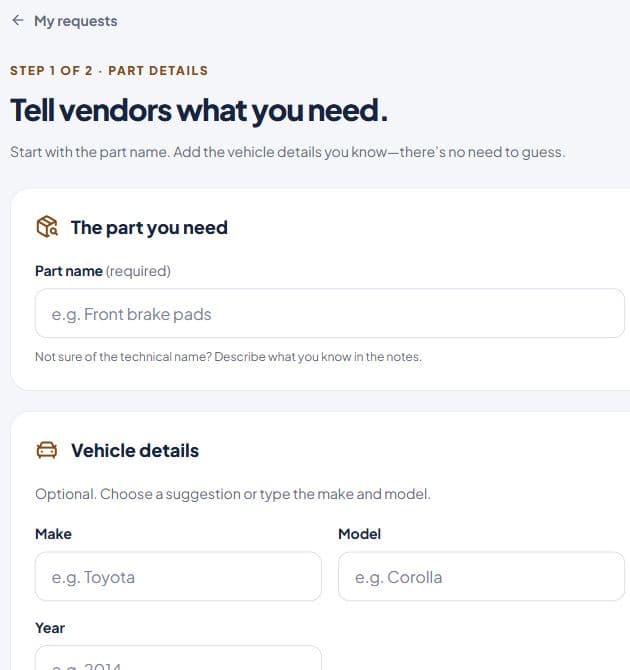
2. Describe the need
Enter the required part name. Add make, model, year and notes where known; leave uncertain details blank rather than guessing. The current form does not attach photos.
3. Review and send
Continue to the review step. Check the part and vehicle details, use Edit details if needed, then send once. Wait for confirmation.
4. Follow the request
Open Requests to see your request history. Where a match is shown, open the listing and confirm details with the vendor. Alerts contains your latest notifications; the All and Unread controls filter that list.
If sending is uncertain
Check My Requests before sending again so a network problem does not create duplicate requests. A match is only a lead to inspect; it does not certify fitment, reserve stock or prove that a purchase happened.
Ready to try it?
Follow the steps at your own pace. Sign in with the appropriate account when prompted. If you get stuck, Help Center has a route to support.